
Hidden/Spoiler:
Help on the Carbon Freezing Chamber
Moderator: Moderators
-
modmaster13
- General

- Posts: 777
- Joined: Wed Aug 18, 2010 4:23 pm
- xbox live or psn: KrypticcElementt
- Location: Twitter @_KrypticElement
- Contact:
Help on the Carbon Freezing Chamber
Hey I am trying to edit the Carbon Freezing Chamber textures to make every part darker exept the orange lights, I tried darkening selected areas but I would have to do that repeatedly. Is there an easier way to do that?
-
DarthD.U.C.K.
- Master of the Force

- Posts: 6027
- Joined: Wed Sep 27, 2006 11:05 am
- Location: Duckburg, Germany
Re: Help on the Carbon Freezing Chamber
so you are asking how to edit parts of an image to be darker? i have no idea what program you are using but you should try brightness/contrast, controls for that should be present in most image editing programs.
-
modmaster13
- General
- Posts: 777
- Joined: Wed Aug 18, 2010 4:23 pm
- xbox live or psn: KrypticcElementt
- Location: Twitter @_KrypticElement
- Contact:
Re: Help on the Carbon Freezing Chamber
I am using gimp. Sorry. 
To clarify: I would like to darken the parts of the texture that have been colored to alpa (the squares). 
Hidden/Spoiler:
-
AQT
- Gametoast Staff

- Posts: 4910
- Joined: Sat Nov 03, 2007 4:55 pm
- Location: SoCal, USA
Re: Help on the Carbon Freezing Chamber
And hint: The alpha channel has already conveniently "seperated" the orange parts from the rest of the texture. Use this to your advantage with what DarthD.U.C.K. suggested.
-
Jaspo
- Command Sergeant Major

- Posts: 282
- Joined: Sun Mar 01, 2009 4:34 am
- Projects :: AotC DoW+++Boonta Eve Classic
- xbox live or psn: No gamertag set
- Contact:
Re: Help on the Carbon Freezing Chamber
GIMP & Photoshop: The best easy way to lighten or darken an image while maintaining it's proper contrast is to make a new layer(s) where the mode for the new layer is set to multiply (to darken) or screen (to lighten)...if one layer makes it too dark or too light, simply reduce the opacity of the new layer.
And to exclude part of the image, select it and then find the option to "select inverse", then copy and paste what is selected into a new layer.
When things look right, flatten and save.
Who ever said college doesn't teach you anything these days?
And to exclude part of the image, select it and then find the option to "select inverse", then copy and paste what is selected into a new layer.
When things look right, flatten and save.
Who ever said college doesn't teach you anything these days?
-
modmaster13
- General
- Posts: 777
- Joined: Wed Aug 18, 2010 4:23 pm
- xbox live or psn: KrypticcElementt
- Location: Twitter @_KrypticElement
- Contact:
Re: Help on the Carbon Freezing Chamber
I tried separating the orange parts, but it took too long to do it for every single orange part. Is there any way I can darken just the alpha/d part of the skin?AQT wrote:The alpha channel has already conveniently "seperated" the orange parts from the rest of the texture. Use this to your advantage with what DarthD.U.C.K. suggested.

-
FragMe!
- Gametoast Staff
- Posts: 2244
- Joined: Sat May 13, 2006 12:34 am
- Projects :: Not sure keep changing my mind.
- xbox live or psn: No gamertag set
- Location: Origin name GT_FragMe
- Contact:
Re: Help on the Carbon Freezing Chamber
Since you are using Gimp, try using color picker (right beside the scissors on the default tool box)
Or just press Shift O and click on one of the orange bits, then invert selection and darken away.
Just tried it, works like a charm
Or just press Shift O and click on one of the orange bits, then invert selection and darken away.
Just tried it, works like a charm
-
AQT
- Gametoast Staff
- Posts: 4910
- Joined: Sat Nov 03, 2007 4:55 pm
- Location: SoCal, USA
Re: Help on the Carbon Freezing Chamber
Yes, I just wrote it out to you.modmaster13 wrote:I tried separating the orange parts, but it took too long to do it for every single orange part. Is there any way I can darken just the alpha/d part of the skin?
AQT wrote:The alpha channel has already conveniently "seperated" the orange parts from the rest of the texture.
Hidden/Spoiler:
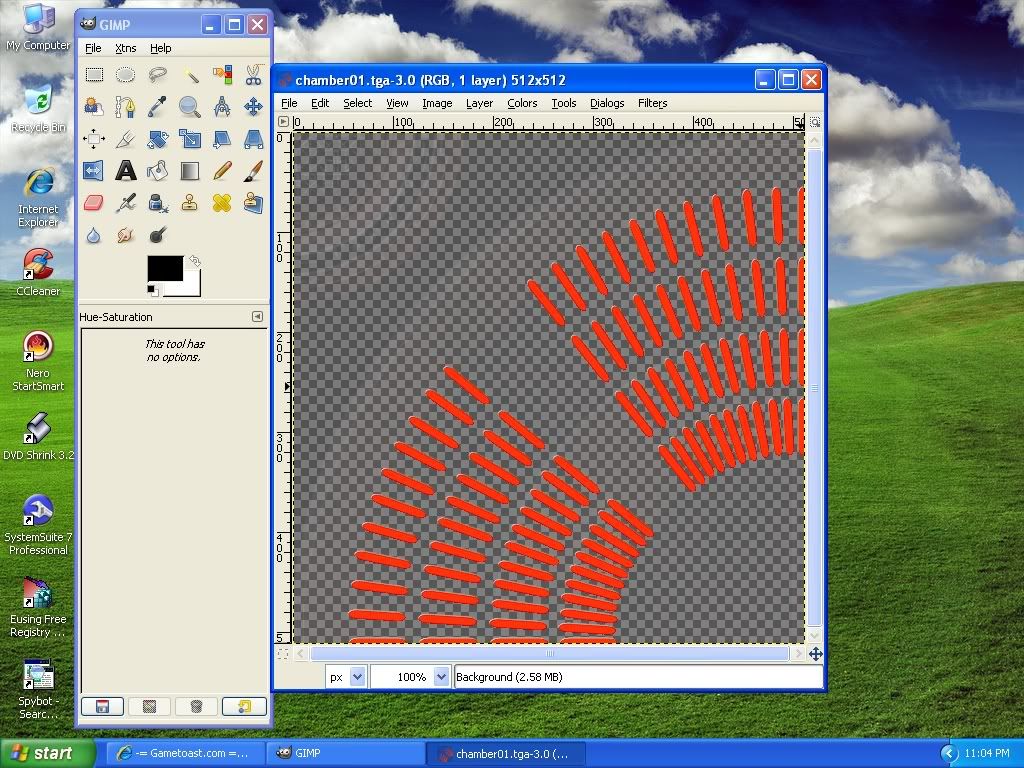
1. Remove the alpha layer.
2. Darken your newly composed RGB image to however dark you want it to be.
3. Copy and paste the original image with the alpha channel over the darkened image.
4. Reapply the alpha layer.
Carefully read over this. You're making it a lot harder than it is.