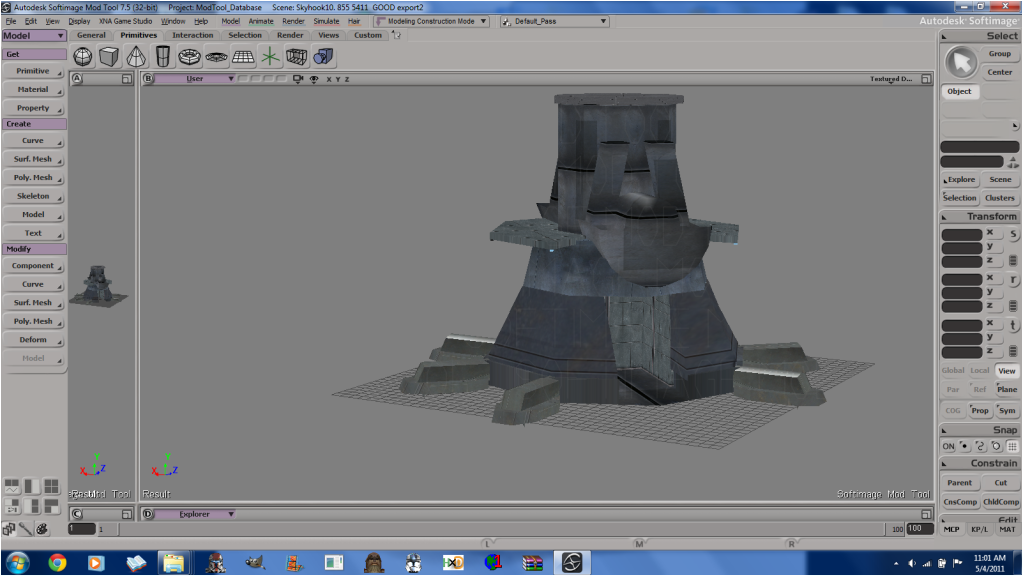
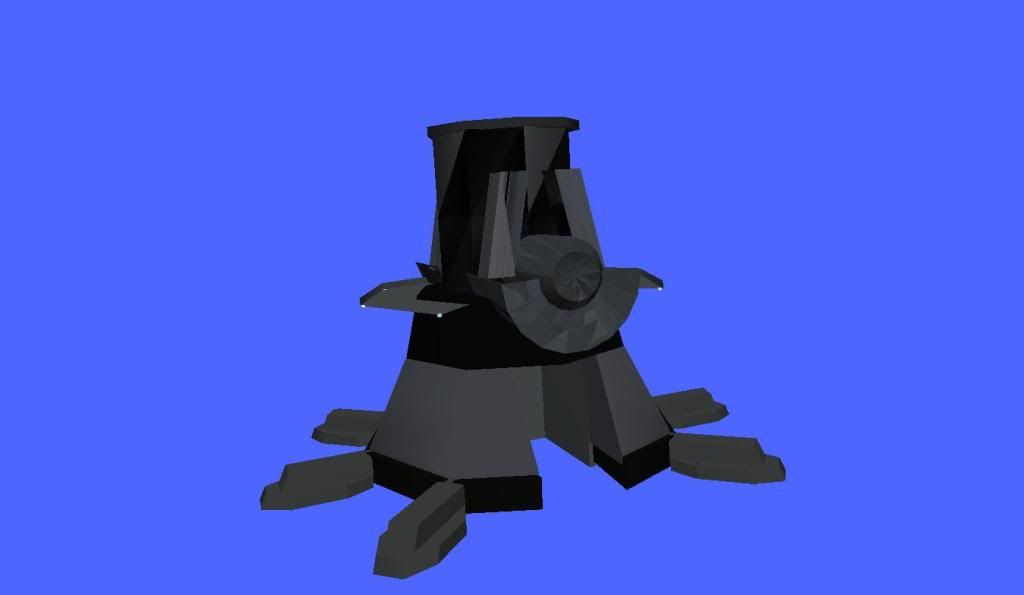
How to create models in XSI and other 3D applications and make them work in Battlefront 1 & 2. Post models, tips for application usage and share anything XSI, 3DMax, SketchUp, etc.
A few things i've learned myself to make MshEx to work properly -
You must not delete any of the edges or points on the model.
Not sure about this one but - You cannot apply another texture on the model when it already has a texture.
These may all be wrong, but when I follow these rules, MshEx exports all my models without any mess-ups. And when I break one of those rules, it always messes up.
One thing i can suggest for you to do is to give that model in obj format and ask someone who has XSI Foundation to export it.
Make sure there is only one texture projection for each polymesh. The mesh can have subprojections, but not mulitple top level projections.
When adding a second image to a msh, select the polies that need the second texture and add the image, but dont select a new projection from the add image screens, use the UV layout screen to add a subprojection.
agentsmith38 wrote:
You must not delete any of the edges or points on the model.
I delete and add points and edges all the time and mshex works fine.
Hmm. I think it is the texture problem. I'll load an old save and come back with results. Thanks for the help so far guys.
EDIT
Wow, i just found out that one of the meshs has 32 Texture_Supports!
If you are modeling in an external program (one other then XSI) it may make UV's automatically. If your are texturing in XSI exclusively, then stop XSI from importing the UV's when you go to import the model into XSI.
EDIT: Also, you never mentioned freezing the UV's. Make sure you do that.
Freezing the transforms and freezing the construction history are two different things. I think this is where a lot of folks mess up when preparing their scene for the msh format, you need to do both. Read the animation_guide.doc for more information, the information under the first section titled Mesh applies to all objects(except primitives) exported to msh.
Thanks Ace, I'll look into that now.
EDIT
It says this..
Freeze the geometry, (collapse stack, delete construction history, whatever you like to call it).
How is this done?
Cerfon Rournes wrote:...
It says this..
Freeze the geometry, (collapse stack, delete construction history, whatever you like to call it).
How is this done?
The animation_guide.doc gave you keywords, you can search for these keywords in the XSI documentation, if you have XSI open just press F1 which is the shortcut key to the help guides. You can also search the online XSI documentation, there is a link to it in the XSI FAQ sticky.
In XSI you edit (operate on) a kind of 'editable preview' of your model rather than the actual model itself. XSI records these operations in stacks. When you Freeze the operator stack you effectively apply or save the changes to your model. This means you can no longer undo those operations.
Use Freeze All Transforms & Freeze (or Freeze M):
Before applying bones.
Before exporting.
If XSI is getting slow.
Freeze All Transforms: In order to export your model properly, you must use the Freeze All Transforms (translations, scalings, and rotations) function, which is buried in the context menu triggered by L-clicking the head (title) of the "Transform" panel.
Freeze M: clears the modeling stack, including any weight maps and texture projections that were applied in the modeling region. The Freeze M button lives in the "Edit" panel at the foot of the right hand sidebar. When your model is enveloped, Freeze will also clear weight map, so use Freeze M (Freeze Model changes) instead.
Freeze: (aka 'Freeze entire object') clears the entire construction history, including the modeling stack as well as any texture operator stacks and weight painting stacks. The Freeze button lives in the "Edit" panel at the foot of the right hand sidebar. Freezing removes any animation on the modeling operators (for example, the angle of a Twist deformation, and so on). The values at the current frame are used.
Note: If running XSI with lower than recommended vertical screen resolution, the "Edit" panel can be pushed off-screen by default! To find it, R-click on the head (title) of the "Transform" and/or "Select" panel to minimize them, and the "Edit" panel should become visible
Remember you are never more than a few clicks away from the information you need.
You can also freeze by going into the UV texture editor (alt-7) and going to Edit>Freeze, if I remember correctly. Do this separate from freezing the transforms.
The Nasal Abyss wrote:You can also freeze by going into the UV texture editor (alt-7) and going to Edit>Freeze...
This only freezes the texture projections, you still need to freeze the object's construction history which will also freeze the texture projections; you kill 2 birds with 1 stone this way, just use Freeze M prior to export to avoid missing anything and you'll be fine.