Page 1 of 3

RE: PARTICLE EDDITOR WORKING!!!!!!

Posted: Tue May 16, 2006 3:35 pm
by theguarder
I fixed the problem a long time ago :P I downloaded the .dll's and putted them in the same folder as particle editor.

Posted: Tue May 16, 2006 3:58 pm
by maxloef
I didnt do anything with the Dll's O.o

Posted: Tue May 16, 2006 4:07 pm
by theguarder
I downloaded the needed .dll's that was how I fixed the problem. But my solution didnt work for everybody, and i think this one does. Nice work.

Posted: Sun May 28, 2006 3:54 am
by Penguin
okay, i got the program working but all the effects are blocks

Posted: Sun May 28, 2006 6:04 am
by maxloef
If you use the particle editor and the particle effects you open look like colored squares then the program is not finding the munged assets it needs to display them.

To fix this you need to copy the munged assets to a location the particle editor can find. Internally we have everything in common\munged but I don't think I gave you that with the mod tools, so you would need to recreate the munged assets by copying all the files into your mod's project common\effects folder and munging them from there. I haven't tried this, and you should only do it to restore the munged assets you need to run all the effects with the particle editor because if you do this in a real project it will fatten the project unnecessarily. All you are trying to do is copy the files need to create the munged files you need so they can be copied into a location such as ParticleEditor\Munged where the particleeditor is looking for them.

Posted: Sun May 28, 2006 11:58 am
by Droideka88
Where can I get Particle Effect for free?

Posted: Sun May 28, 2006 12:04 pm
by Murdocr
it's in the mod tools

Posted: Sun May 28, 2006 12:17 pm
by Droideka88
Ok I remember someone told me to put a common.lvl and the program "Particle Editor" into the LVL_PC > Munged folder.

But I can't open because of this.
This application has failed to start because d3dx9_25.dll was not found. Re-installing the application may fix this porblem.
Now what?

Edit
I don't mean to be rude but I really need somebody to answer my question as soon as possible.

Posted: Wed May 31, 2006 8:04 pm
by Teancum
http://www.m3fe.com/760/

Should find a fix there. :D

Posted: Tue Jun 06, 2006 7:06 pm
by Droideka88
Teancum wrote:http://www.m3fe.com/760/

Should find a fix there. :D
You're the man. 8)

So let's say when I modify one of these fx files. How can I submit these to Gametoast?


Edit
Ok I still some help.
Could not find common.lvl
I know where I can find this file but I'm still unsure in which folders it needs to go in.

Here's the thing. My BF2 Mod tools folder is INSIDE the LucasArts folder.

I know that there's a folder called "data".

I followed the instructions by making a new folder called "_LVL_PC" and put the core.lvl in there. I also put a common.lvl in there as well but Particle Editor can't read it.

What am I doing wrong?

Posted: Wed Jun 07, 2006 3:03 am
by Qdin
I have the EXACT same problem, Droideka88 :o

and when I press the OK-button, it opens the Particle editor as it should - BUT:
when I open a .fx it is limited.

2 things either happens:
1: It don't show anything at all
2: The effect is completely black and squared.

Skyhawk tried to help me with tihs, but got out of ideas :os

Posted: Wed Jun 07, 2006 6:34 pm
by Tohron
Seems I only found an early version of the Mod Tools - where can I download a version that has the Particle Editor?

Posted: Fri Sep 15, 2006 12:20 pm
by Qdin
Listen up, guys.
Sorry for bumping the whole thing, but I would really like to have a reply. The topic disappeared away from me a few days later, so I haven't bee nable to find it (Diet Dr. Pepper Searching didn't help :cry: )

The reason I'm reopening is because I'm still having the problem like Droideka88. 2 things: Since it's obvious there are more than one person who has the errors and problems, it should get solved in case more people have the problem(s).
And 2nd of all I'm a moderator which gives me the power :P rofl.
But seriously; I'd really like to know if anyone has gotten any more ideas with the problems I'm having :? Many has tried but failed xD

- Q

Posted: Fri Sep 15, 2006 4:40 pm
by PvtParts
Okay, ill help ya. But I request that your patient, and willing to take things one step at a time.

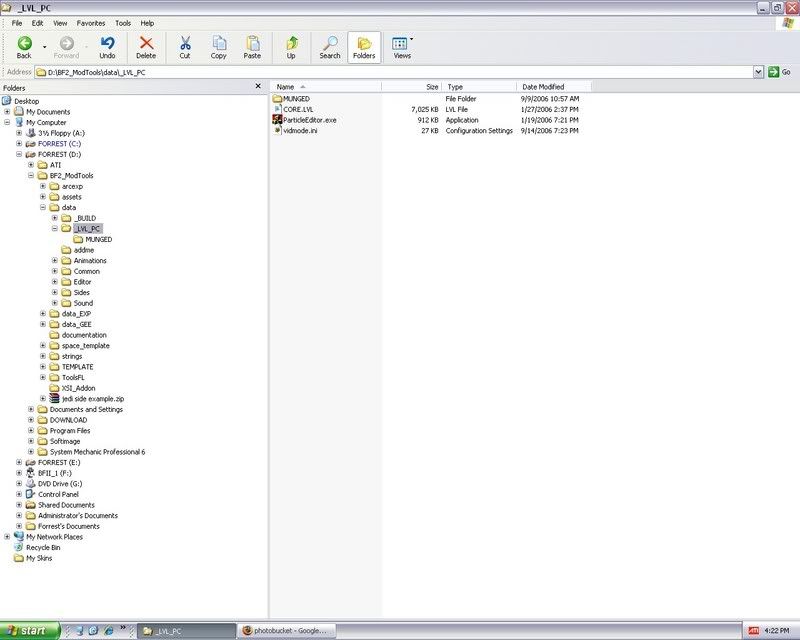
First off, show me the relevant file tree setup of your BF2_Modtools\DATA folder.

It should look like this

PS. I should report you for admin abuse.........

Particle Editor

Posted: Fri Sep 15, 2006 4:55 pm
by AceMastermind
This post is an effort to organize information spread around the forums to get Particle Editor working.

Notes:
  • Method #1 is the preferred way to make Particle Editor work.
  • Method #2 is an updated ParticleEditor.exe from psych0fred which should work if no other way does.


Method #1
1. Copy the "ParticleEditor.exe" from:
BF2_modtools\ToolsFL\bin
to:
C:\Program Files\LucasArts\Star Wars Battlefront II\GameData\DATA\_LVL_PC

2. Create a folder and name it "Munged" in:
C:\Program Files\LucasArts\Star Wars Battlefront II\GameData\DATA\_LVL_PC

3. Create a new map and call it ABC, munge it once with the default options ticked.

4. Now go to:
data_ABC\_BUILD\Common\MUNGED\PC
and copy everything from the "PC" folder to the "Munged" folder you created earlier.

5. Now, click on the "ParticleEditor.exe" in:
C:\Program Files\LucasArts\Star Wars Battlefront II\GameData\DATA\_LVL_PC
You will get an error message,
"Could not read common.lvl"
click "OK", it will still launch.

5a. If you want to eliminate the common.lvl error, create this folder structure:
C:\Program Files\LucasArts\Star Wars Battlefront II\GameData\DATA\_LVL_PC\COMMON\ENG\common.lvl
where you would copy (not move!) common.lvl from:
C:\Program Files\LucasArts\Star Wars Battlefront II\GameData\DATA\_LVL_PC
to the ENG folder.


Now that Particle Editor is running, lets find an *.fx file to play around with.

Click on "File" in the menu bar at the top, then click on "Open"

Now choose a file from:
data_ABC\Common\effects
and you will be able to see the effects on the grid as they would appear in-game.

Play around with the size and # of particles or whatever.

If you create something new that you like and you want to use it
click on "File" in the menu bar then click "Save as",
give the new effect a name and click "Save".
Save it to your side or world effects folder, and "call" for the new effect in the odf or whatever it was intended for.

Then munge and play!


A note about "blocky" looking effects when viewed in Particle Editor:
[color=#FFBF40]psych0fred[/color] wrote:If you use the particle editor and the particle effects you open look like colored squares then the program is not finding the munged assets it needs to display them.

To fix this you need to copy the munged assets to a location the particle editor can find. Internally we have everything in common\munged but I don't think I gave you that with the mod tools, so you would need to recreate the munged assets by copying all the files into your mod's project common\effects folder and munging them from there. I haven't tried this, and you should only do it to restore the munged assets you need to run all the effects with the particle editor because if you do this in a real project it will fatten the project unnecessarily. All you are trying to do is copy the files need to create the munged files you need so they can be copied into a location such as ParticleEditor\Munged where the particleeditor is looking for them.
You can munge the files yourself like we did earlier in step 3 or get them from this file:
Particle Editor with munged assets
Extract the "Munged" folder to this directory:
C:\Program Files\LucasArts\Star Wars Battlefront II\GameData\DATA\_LVL_PC


You may at some point encounter an fx file that won't open in Particle editor, like droidekashield.fx.
This type of file is an ODF/fx hybrid, or an fx built with ODF-like properties.
You'll have to edit these types in a text editor.


Method #2
Download this file
BF2_ParticleEditorUpdate_extract_to_toolsfl.zip
and extract it to:
C:\BF2_ModTools\ToolsFL

Effects viewed in this version will always look blocky or pixelized.

Posted: Fri Sep 15, 2006 9:41 pm
by Droideka88
It worked. Thanks a bunch. Now where can I get other fx files from besides the sides?

Posted: Sat Sep 16, 2006 4:54 pm
by Qdin
There aren't I think... :? The rest are in the World Folders for the various maps under effects... :roll:

and AceMasterMind, you're tha' man! :P

You've jsut earned 5 Q Honor Points :P rofl

Particle Editor

Posted: Thu Jul 31, 2008 8:02 pm
by (RAPTOR)BENSTWO{SGT}
I hope this is the place to post a question like this, but in the particle editor doc. found here.
http://www.gametoast.com/forums/viewtop ... a&start=15
Ace Mastermind gave this tutorial below.
Hidden/Spoiler:
[quote]Try this:

Particle editor:

Create a "test" map, lets call it ABC

Copy the "ParticleEditor.exe" from:
BF2_modtools/ToolsFL/bin
and paste it in:
data_ABC/_LVL_PC

Now, you need to download the "d3dx9_25.dll"
Located here:
http://www.m3fe.com/760/

After downloading the .dll, copy and paste it in:
data_ABC/_LVL_PC

Create a folder called "Munged" in:
data_ABC/_LVL_PC

Now go to:
BF2_ModTools\data_ABC\_BUILD\Common\MUNGED\PC
and just copy everything in the "PC" folder
(remember, this is only a "test" map, so don't worry about file size)

then paste everything into the empty "Munged" folder in:
data_ABC/_LVL_PC

Now, click on the "ParticleEditor.exe" in:
data_ABC/_LVL_PC
You will get an error message,
"Could not read common.lvl"
but it doesn't matter, click "OK" after getting the message and "particle editor" will open anyway.

Now that "particle editor" is running, lets find an fx file to screw around with.

Click on "File" in the toolbar at the top left.
Then click on "Open"

Now choose a file from:
data_ABC/Common/effects
and click on any of the effects in this folder, then you will be able to see them on the grid as they would appear "in-game".

Just play around with the size and # of particles or whatever.

If you create something new that you like and you want to use it, then
click on "File" in the toolbar at the top left and then click "Save as",
give the new fx file a name and click "Save".

Now leave "particle editor" and go to:
data_ABC/Common/effects
and find the .fx file that you just saved and copy it.

Then paste the new fx file in the "effects" folder of the side that you want to use it and be sure to "call" for the new "effect" in the odf for whatever it was designed for.

Then "munge" and play!
[/quote]
Alright I got to the part where you download the d3dx9_25.dll. I downloaded It and was going to place it in my data_abc/_LVL_PC, but I could not find _LVL_PC in my data_abc!
Here is what it looks like.
http://img174.imageshack.us/my.php?imag ... re5ft6.png
If any body knows how to fix this of where or how it disipeared please let me know. :cry:

Re: Particle Editor

Posted: Thu Jul 31, 2008 8:15 pm
by AceMastermind
You only need to do that if you'd rather use PE from within your project folder.

Download this file:
http://www.gametoast.com/viewtopic.php?f=64&t=11127
Extract the contents, open the extracted folder and move the "Munged" folder and PE.exe into this directory and it should work:
LucasArts\Star Wars Battlefront II\GameData\DATA\_LVL_PC

Re: Particle Editor

Posted: Thu Jul 31, 2008 8:20 pm
by (RAPTOR)BENSTWO{SGT}
I downloaded particle editor and put them in BF2_Modtools/ToolsFL. Then I downloaded d3dx9_25 and was going to put it in my Data_abc/_LVL_PC. The problem here is that there is no Data_abc/_LVL_PC. Also I still havn't gotten to the part in the tutorial where you make the Munged folder in Data_abc. The only thing I am confused about in this is where is my _LVL_PC? Otherwise I understand everything else perfectly.