Page 1 of 2
Land bridges / arches [Solved]
Posted: Sat Mar 24, 2007 3:48 pm
by ARC_Commander
I'm making a Cato Neimoidia map with the bridge cities and etc. I've made a sort of canyon, but I'm puzzled as to how to make the arches over it:


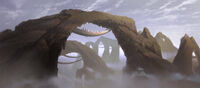
Could anyone help me on this?
RE: Land bridges / arches
Posted: Sat Mar 24, 2007 3:51 pm
by Caleb1117
I do not think its possable to make an arch (or cave) out of the terrain in ZE, the only way you can do it is with an object.
RE: Land bridges / arches
Posted: Sat Mar 24, 2007 3:56 pm
by ARC_Commander
Ah, I see. I'll try that.
RE: Land bridges / arches
Posted: Sat Mar 24, 2007 4:15 pm
by Caleb1117
Well good luck, a Neimoidia map like that would be awsome!
RE: Land bridges / arches
Posted: Sat Mar 24, 2007 4:39 pm
by trainmaster611
I know in the BF1 assets there is an arch in the tat1 world that might fit this map but its gonna be kinda small for you

You would have to model a new one
Posted: Sat Mar 24, 2007 4:49 pm
by Caleb1117
Wait no you wouldnt! thats it! use Eddie's\Squipple's scale option! let me explain
1 Find the object trainmaster is talking about.
2 in the odf file add this line under [GameObjectClass]
3 next find the msh file for the object lets pretend its called Tat_bldg_arch1.msh, now make a new text document named Tat_bldg_arch1.msh.option, make sure the file extention is option instead of txt. then open it with note pad and add this line
4 done!
Basicly the GeometryScale = 2.0, and the -scale 2.0, is you telling the game to make the object 2 times bigger. so if you said
GeometryScale = 6.0 it would be 6 times bigger.
Or,
GeometryScale = 0.10 the object would be a tenth of the original size.
But remeber the number that you put into the odf must match what the number in the .msh.option is.
Posted: Sat Mar 24, 2007 5:32 pm
by ARC_Commander
Thanks guys!
BTW Trainmaster, could you get the name of that arch for me? 3D Object Converter's giving me flak, and only views 1 in 3 objects.
Posted: Sat Mar 24, 2007 5:47 pm
by Caleb1117
well theres several arches, like...
tat1_bldg_arch_tri.msh
tat1_bldg_arch2.msh
also there canyon walls may be usefull
tat1_canyonwall_01.msh
tat1_canyonwall_02.msh
tat1_canyonwall_03.msh
Posted: Sat Mar 24, 2007 5:53 pm
by RC-1290
no, they really don't look like they belong at cato neimoidia.
Posted: Sat Mar 24, 2007 5:56 pm
by Caleb1117
Yea, but you can reskin them.
Posted: Sat Mar 24, 2007 6:06 pm
by ARC_Commander
Thanks Caleb. I'm gonna reskin them, of course.
A little more about this - I need to rotate the arch. This may sound really nooby, but... HOW THE HECK DO I DO THAT? :evil:
Offer to scale up arch model
Posted: Sat Mar 24, 2007 6:34 pm
by AceMastermind
Scaling an object up to the size that you need will most likely produce odd side effects(disappearing mesh ingame), if you'd like, i could scale it up for you properly in XSI, just give me the odf names of the objects and how large you want them.
Posted: Sat Mar 24, 2007 6:35 pm
by RC-1290
Z and X (only different when in multi select)
Posted: Sat Mar 24, 2007 6:42 pm
by ARC_Commander
Err... I'm pretty new when it comes to ZeroEditor. I'm better with skins. So please tell me, where would I find Z and X?
Rotate objects
Posted: Sat Mar 24, 2007 6:49 pm
by AceMastermind
ARC_Commander wrote:So please tell me, where would I find Z and X?
On your keyboard.
Example
Hold down the "z" key and hold middle click on your mouse then move the mouse to rotate.
Posted: Sat Mar 24, 2007 7:04 pm
by Caleb1117
Yea "x" key moves objects up, down, and the 4 cardnal directions, "z" is for rotateing and changeing angles
Posted: Sat Mar 24, 2007 7:36 pm
by ARC_Commander
Ahhh... thank you.

I feel dumb.

Posted: Sun Mar 25, 2007 12:07 am
by trainmaster611
Yeah I just pushed random buttons until it worked

Caleb1117 wrote:Wait no you wouldnt! thats it! use Eddie's\Squipple's scale option! let me explain
1 Find the object trainmaster is talking about.
2 in the odf file add this line under [GameObjectClass]
3 next find the msh file for the object lets pretend its called Tat_bldg_arch1.msh, now make a new text document named Tat_bldg_arch1.msh.option, make sure the file extention is option instead of txt. then open it with note pad and add this line
4 done!
Basicly the GeometryScale = 2.0, and the -scale 2.0, is you telling the game to make the object 2 times bigger. so if you said
GeometryScale = 6.0 it would be 6 times bigger.
Or,
GeometryScale = 0.10 the object would be a tenth of the original size.
But remeber the number that you put into the odf must match what the number in the .msh.option is.
Wow thats amazing!!!

I didn't think that actually worked! Does it mess up the quality of the object?

Oh and the name of the object is
tat1_bldg_arch_tri.msh

Posted: Sun Mar 25, 2007 12:29 am
by Penguin
GeometryScale = <FLOAT> is for ZE
-scale <FLOAT> is for ingame, they can be different, they don't need to be the same.
Scaling up messes up the objects LOD and collision so you only use -scale <FLOAT> to shrink something.
Posted: Sun Mar 25, 2007 12:43 am
by Caleb1117
So, the collision geometry of the object remains constant? I Don't know alot about the proses I basicly figured it out on my own, based on a few comments made by squipple. I only used it cause one of the squeddies objects was huge ingame, a painting.
As per Penguin's statement about "they can be different, they don't need to be the same." I didn't know that, however it would be sorta pointless to have it show a diffrent size in ZE, from whats ingame.