Ya that's not normal. The only clue I have is that when I munge it says the normal munging things but then it says: 'xcopy' is not recognized as an internal or external command,
operable program or batch file.
What is wrong?
RE: Big Problem
Posted: Mon Dec 18, 2006 5:52 pm
by Schizo
I've had this happen to me once as well. I can't remember what caused it though, it was so long ago. It's definitely something to do with the localization however. Try remunging the localization and common files. If that fails, try a manual clean (cleaning out all the MUNGED -> PC folders in the _BUILD folder, and deleting all LVL files in the _LVL folder).
RE: Big Problem
Posted: Sat Dec 23, 2006 11:50 am
by Darth_Z13
Did that and I still have the problem. It's not just this level that it happens to. All of them have the xcopy error. Even after I re-installed the mod tools.
EDIT
Another clue: after it starts munging the Localization files it gives me this error: 'more' is not recognized as an internal or external command,
operable program or batch file.
EDIT2:
Hidden/Spoiler:
[code]Merging ..\..\Common\Localize\PC\English.cfg...
Merging ..\..\Common\Localize\PC\French.cfg...
'more' is not recognized as an internal or external command,
operable program or batch file.
Merging ..\..\Common\Localize\PC\german.cfg...
'more' is not recognized as an internal or external command,
operable program or batch file.
Merging ..\..\Common\Localize\PC\Italian.cfg...
'more' is not recognized as an internal or external command,
operable program or batch file.
Merging ..\..\Common\Localize\PC\japanese.cfg...
'more' is not recognized as an internal or external command,
operable program or batch file.
Merging ..\..\Common\Localize\PC\spanish.cfg...
'more' is not recognized as an internal or external command,
operable program or batch file.
Merging ..\..\Common\Localize\PC\uk_english.cfg...
'more' is not recognized as an internal or external command,
operable program or batch file.
'more' is not recognized as an internal or external command,
operable program or batch file.
Merging ..\..\Common\Localize\Comments.cfg...
'more' is not recognized as an internal or external command,
operable program or batch file.
Merging ..\..\Common\Localize\english.cfg...
Merging ..\..\Common\Localize\french.cfg...
'more' is not recognized as an internal or external command,
operable program or batch file.
'more' is not recognized as an internal or external command,
operable program or batch file.
Merging ..\..\Common\Localize\german.cfg...
'more' is not recognized as an internal or external command,
operable program or batch file.
Merging ..\..\Common\Localize\italian.cfg...
'more' is not recognized as an internal or external command,
operable program or batch file.
Merging ..\..\Common\Localize\japanese.cfg...
'more' is not recognized as an internal or external command,
operable program or batch file.
Merging ..\..\Common\Localize\spanish.cfg...
'more' is not recognized as an internal or external command,
operable program or batch file.
Merging ..\..\Common\Localize\uk_english.cfg...
'more' is not recognized as an internal or external command,
operable program or batch file.
That's what I get when I munge the Localization files....
ANOTHER EDIT: The core file isn't being munged. I could copy over a core file from another level but then I wouldn't get my custom names. Looking at my levels core file it is 1 KB where as alll of the maps from the conversion pack are 2700 KBs and up....
Posted: Wed Dec 27, 2006 6:48 pm
by DarkHelmet
The file MORE.COM is a standard commandprompt executable in windows and can be called by batch files, programs or from the commandprompt.
When munging it's called from c:\bf2_Modtools\data_XXX\_build\common\MergeLocalize.bat.
It looks like it's deleted.
Check if this file excists:
c:\windows\system32\more.com
asuming windows is installed in c:\.
If not, copy it from the windows install cd. It's in the i386 folder and it's called MORE.CO_.
Copy it to c:\windows\system32\ and rename it to more.com.
If the file does excist on that location, go to Start->Run and type cmd.
In the new window type PATH and press Enter. There should output like this:
If there is no entry like: c:\windows\system32; then it can't find the file (and you should have serious other problems with your pc as well).
Also open (edit) the file c:\bf2_Modtools\data_XXX\_build\common\MergeLocalize.bat
Almost at the bottom there are these lines:
FOR %%i IN (%Source1Dir%\*.cfg %Source2Dir%\*.cfg) DO (
echo Merging %%i... more %%i >> %TempDir%\%%~ni%%~xi
)
make sure these lines are exactly like this.
btw: xcopy.exe is in the same location as more.com (c:\windows\system32). Check if it's there as well.
Posted: Tue Jan 09, 2007 11:19 pm
by Karnage
Have you tried making backup copies of your maps in another folder then re-installing the mod tools?
That might work.
Posted: Tue Jan 09, 2007 11:23 pm
by Darth_Z13
Yes I reinstalled everything and it didn't help.
Posted: Tue Jan 09, 2007 11:37 pm
by Xavious
Did you try reinstalling your game?
Posted: Wed Jan 10, 2007 6:37 pm
by Darth_Z13
Darth_Z13 wrote:Yes I reinstalled everything and it didn't help.
@Dark_Helmet, thanks for the help but those files were there and it didn't help.
Posted: Wed Jan 10, 2007 7:07 pm
by Ipodzanyman
I had this problem before, basically I took everything and shoved it into a new map, and it worked, but I don't know if your problem is caused by the same thing....
Posted: Wed Jan 10, 2007 8:49 pm
by Darth_Z13
Unfortunately the same thing happens when I start a new map.
Posted: Wed Jan 10, 2007 10:38 pm
by [RDH]Zerted
This is fixable, it just might take a few steps.
What is your operating system?
On the start menu, select 'Run'. In the run window, type 'cmd' then press Enter. If a command line window opens (one should) type 'more hello' in the new window and press Enter. Tell us the command's output.
Next, type 'PATH' and press Enter. Tell us the command's output.
You should be able to close the window by typing 'exit' then pressing Enter.
Posted: Wed Jan 10, 2007 11:40 pm
by Teancum
Wait... where do you have the Mod Tools installed Z13? You must install them in a folder that has no spaces.
Posted: Thu Jan 11, 2007 7:31 pm
by t551
This is off-topic, but I was playing around with the more command, and I feel compeeled to ask what it is for. All it seems to do is spit out your input twice, which is pretty simple to program.
'more' is not recognized as an internal or external command,
operable program or batch file.
2.
Posted: Fri Jan 12, 2007 11:04 am
by FragMe!
Darth_Z13
Did you do as Zerted suggested run a search for more.com? You may have to change viewing options on the windows
folder to allow you to see system and hidden files. If it doesn't find it then it somehow got deleted or corrupt.
off topic
@t551t551
here is the help description from the CMD prompt for more
more /?
Displays output one screen at a time.

MORE [/E [/C] [/P] [/S] [/Tn] [+n]] < [drive:][path]filename
command-name | MORE [/E [/C] [/P] [/S] [/Tn] [+n]]
MORE /E [/C] [/P] [/S] [/Tn] [+n] [files]

    [drive:][path]filename  Specifies a file to display one
                            screen at a time.

    command-name            Specifies a command whose output
                            will be displayed.

    /E      Enable extended features
    /C      Clear screen before displaying page
    /P      Expand FormFeed characters
    /S      Squeeze multiple blank lines into a single line
    /Tn     Expand tabs to n spaces (default 8)

            Switches can be present in the MORE environment
            variable.

    +n      Start displaying the first file at line n

    files   List of files to be displayed. Files in the list
            are separated by blanks.

    If extended features are enabled, the following commands
    are accepted at the -- More -- prompt:

    P n     Display next n lines
    S n     Skip next n lines
    F       Display next file
    Q       Quit
    =       Show line number
    ?       Show help line
    <space> Display next page
    <ret>   Display next line
Basically stops or pauses the screen display and waits for a key to be hit to display the next line or page.
In Visual Munge it is most likely controlling the scrolling display as it munges.
FragMe!
(DOS the other other operating system)
Posted: Fri Jan 12, 2007 7:40 pm
by Darth_Z13
It's there FragMe! ....
Posted: Sat Jan 13, 2007 12:51 am
by FragMe!
Now I am home I read this post again and looking at your results from the path command
yours shows Path=%SystemRoot%\system32 etc where it should have Path=C:\Windows\system32 etc
So it is basically not looking in the right place.
I am not sure if you know much DOS but try this
Select RUN from the start tab
type cmd
This opens up a DOS window
then type:
CD\windows\system32
your prompt should now show
C:\WINDOWS\system32>
then type:
tree |more
What this should show you is a tree structure of the system32 directory but more importantly at the bottom of the
window you should see -- more -- if you hit enter it will show the next line or space to show the next page.
If this happened then the more command is fine and it is just the path that is screwed somehow.
Next question have you done a scan for viruses lately? Something has corrupted the path but it hard to say what.
FragMe!
(Yes I am old enough to have worked with DOS *sigh*)
Posted: Sat Jan 13, 2007 1:37 pm
by Darth_Z13
Well then the path is corrupted.... is there any way to fix?
Posted: Sat Jan 13, 2007 8:09 pm
by FragMe!
Darth
Assuming you are running XP
Possible way is go to Control Panel then select System in the system window select the Advanced tab.
At the bottom you will see a Environment Variables button click on that, it will call up another window
that has two sections User Variables and System Variables we want the second one.
Scroll through all the different variables the first one you look for is one called: windir and it's value should be
C:\WINDOWS if you can't find one of those then you will have to make one. Choose New and enter windir as
the Variable name and C:\WINDOWS as the Variable value then press OK.
Having done that find the variable for Path
It should show the current path with C:\WINDOWS etc displayed. (may have to reboot for it to take affect)
If there was a windir variable already you can edit the path variable to change the %SystemRoot% to C:\WINDOWS.
Make sure when you start to edit this click somewhere on the text with the mouse
so the whole line is not blue and use the arrow keys to scroll to the tect you want. If you just start typing you will have
to enter the whole path as you pasted above with C:\WINDOWS in the appropriate places to change.
Ultimate test though is to try and munge and see if the error is gone.
Hope that helps beyond that the only other thing is to reinstall windows which really sucks so here's hoping.
FragMe!
Posted: Sat Jan 13, 2007 8:38 pm
by Darth_Z13
Will this seriously effect my computer if something goes wrong?
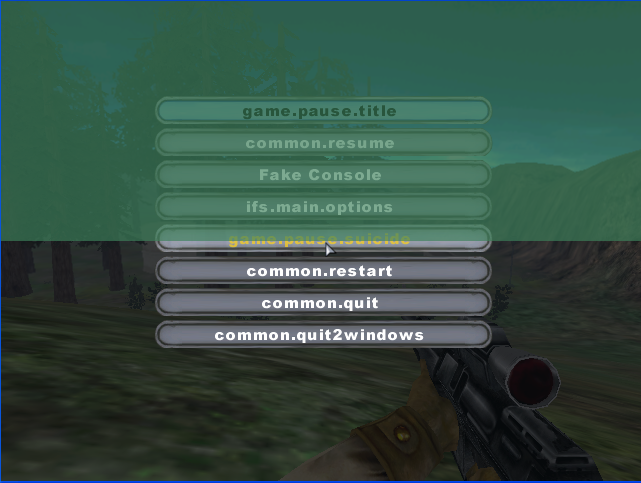
 It's not just this level that it happens to. All of them have the xcopy error. Even after I re-installed the mod tools.