Dealing with alpha channels in GIMP [Tutorial w/pics] (FAQ)
Posted: Fri Nov 20, 2009 9:21 pm
The video tutorial for the same is a bit outdated and not completely compatible with newer versions of GIMP, and, well, who really wants to download a video?
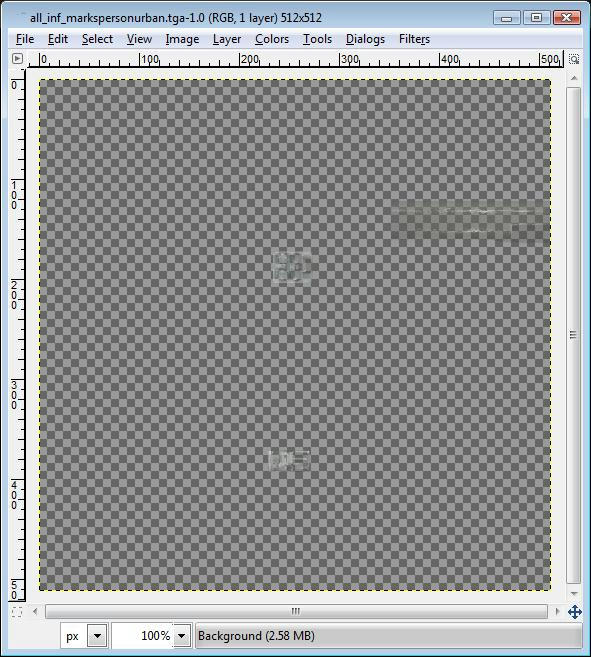
First, open the targa that has the alpha channel that you want to modify. If it has an alpha channel, it will predominantly appear as a gray checkerboard pattern, like so:
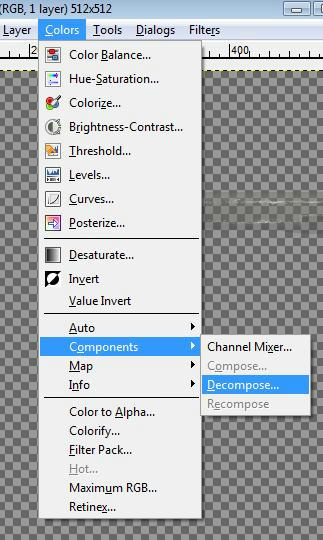
Next, you need go on the image's menu to Colors > Components > Decompose.
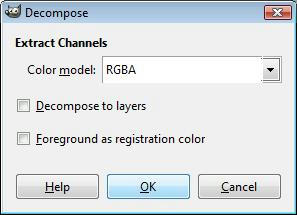
Uncheck both checkboxes and choose "RGBA" from the drop-down menu.
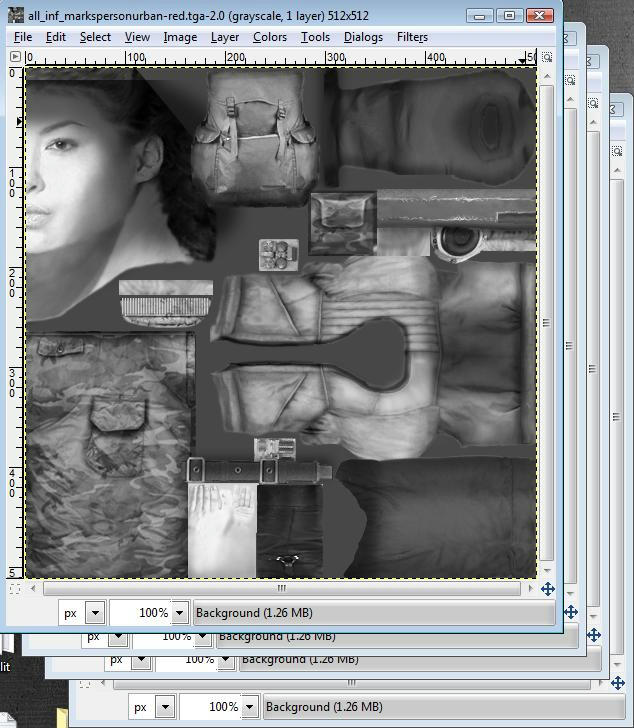
The result will be four grayscale images that will show up like this:
Now you need to go to Colors > Components > Compose.
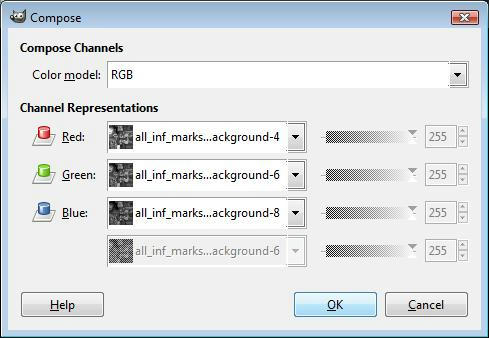
Choose RGB in the top drop-down menu and select the red, green, and blue images for the lower three. (The bottom option in each dropdown will be for red, second to last will be green, and the second option for blue. The last one is alpha, don't worry about that one for now)
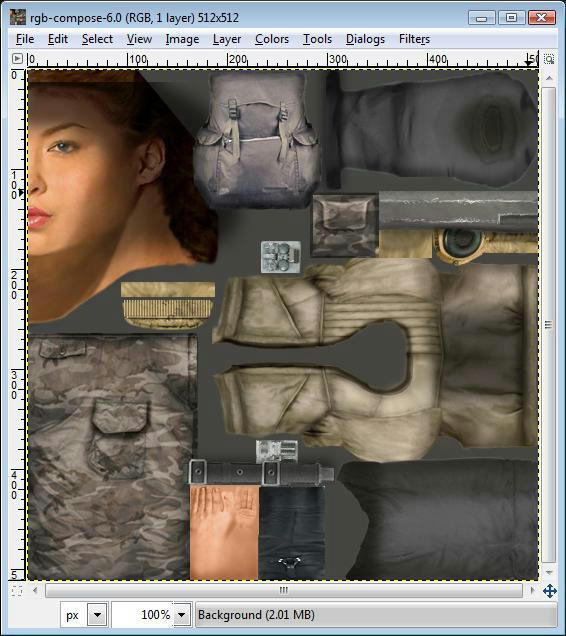
You'll now have a nice image like this, that is easy to work with:
You can go ahead and close the grayscale images for red, green, and blue, but be sure to keep the alpha one open. Now reskin to your heart's content.
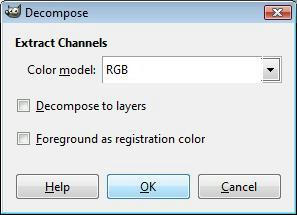
Again, go to Colors > Components > Decompose, but choose RGB in the drop down menu this time, still with both checkboxes left unchecked.
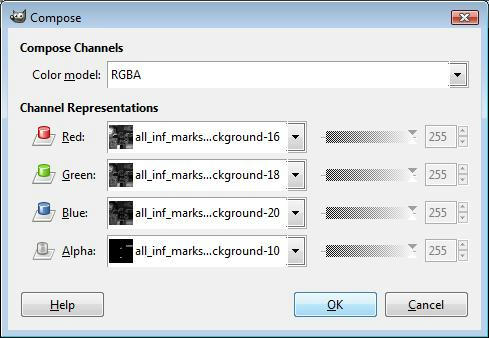
Next, go to Colors > Components > Compose and choose RGBA in the top drop-down menu, and select the correct grayscale images for each of the following four drop-downs. Use the alpha image from the original decomposition, and the red, green, and blue that were just created from decomposing the modified skin.
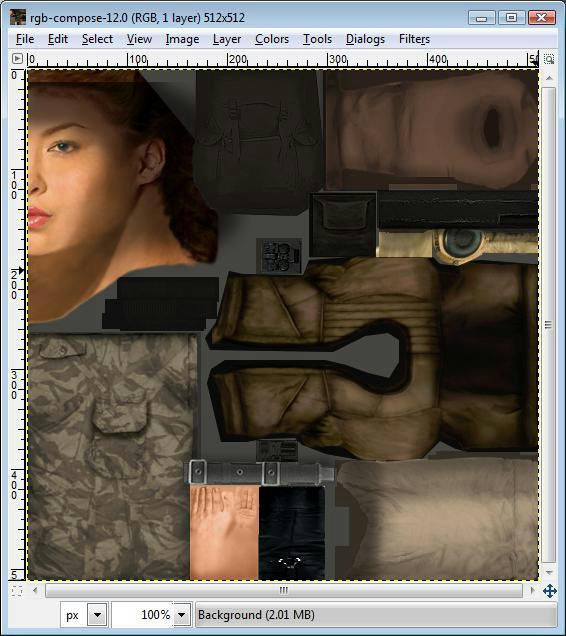
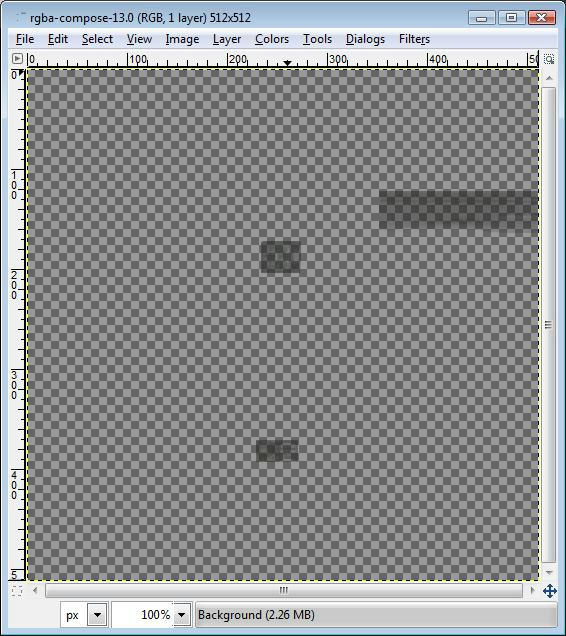
Now you'll get something that looks very similar to the original. Save it for your new skin, and remember to turn RLE compression off.
Congratulations! You've just come one step closer to SWBF2 modding mastery.
First, open the targa that has the alpha channel that you want to modify. If it has an alpha channel, it will predominantly appear as a gray checkerboard pattern, like so:
Hidden/Spoiler:
Next, you need go on the image's menu to Colors > Components > Decompose.
Hidden/Spoiler:
Uncheck both checkboxes and choose "RGBA" from the drop-down menu.
Hidden/Spoiler:
The result will be four grayscale images that will show up like this:
Hidden/Spoiler:
Now you need to go to Colors > Components > Compose.
Hidden/Spoiler:
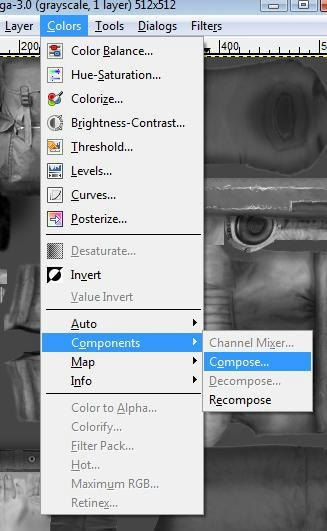
Choose RGB in the top drop-down menu and select the red, green, and blue images for the lower three. (The bottom option in each dropdown will be for red, second to last will be green, and the second option for blue. The last one is alpha, don't worry about that one for now)
Hidden/Spoiler:
You'll now have a nice image like this, that is easy to work with:
Hidden/Spoiler:
You can go ahead and close the grayscale images for red, green, and blue, but be sure to keep the alpha one open. Now reskin to your heart's content.
Hidden/Spoiler:
Again, go to Colors > Components > Decompose, but choose RGB in the drop down menu this time, still with both checkboxes left unchecked.
Hidden/Spoiler:
Next, go to Colors > Components > Compose and choose RGBA in the top drop-down menu, and select the correct grayscale images for each of the following four drop-downs. Use the alpha image from the original decomposition, and the red, green, and blue that were just created from decomposing the modified skin.
Hidden/Spoiler:
Now you'll get something that looks very similar to the original. Save it for your new skin, and remember to turn RLE compression off.
Hidden/Spoiler:
Congratulations! You've just come one step closer to SWBF2 modding mastery.
