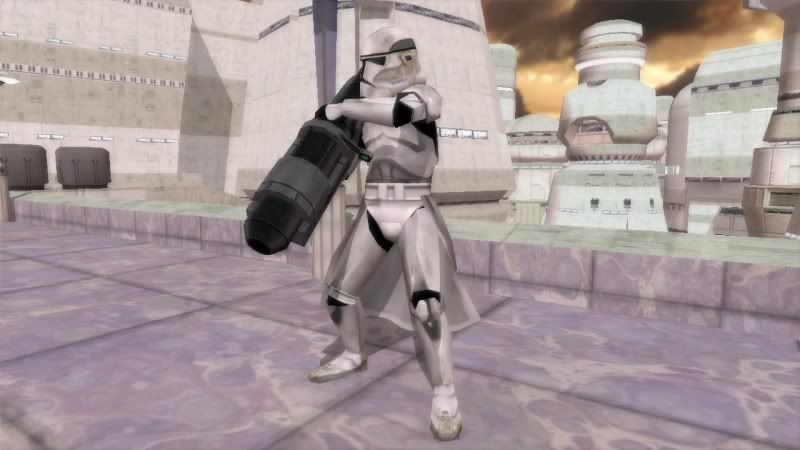
Re: Hexedit Clonetrooper Cape (FAQ)
Posted: Thu Nov 25, 2010 6:30 pm
Alright, here's a tutorial for those who learn by example with none of the "technical" stuff, mostly all in layman's terms:
In this tutorial we will be hex editing the cape from rep_inf_clonecommander.msh to rep_inf_ep3trooper.msh.
Step 1: Get a hex editor (XVI32 will be used in this tutorial).
Step 2: Open up rep_inf_clonecommander.msh in the hex editor. Go to Search > Find... and type in MODL like so:
And click OK.
Step 3: Keep searching for MODL by going to Search > Find Again Down until you have reached the right chunk for the cape. You will know this by its NAME.
Step 4: Now place the cursor on M of MODL. Hold down the Shift key and then the Down Arrow key at the same time. And highlight...
...until you have reach the character/letter/number right before the next MODL If there is no next MODL, then stop before CL1L.
Step 5: Now hit Ctrl + C on your keyboard (after letting go of the Shift and Down Arrow key, of course). Then go to File > New and hit Ctrl + V on your keyboard. Scroll down to the last character/letter/number of the cape chunk you just pasted and get its Adr. dec number like so:
Step 6: Open up rep_inf_ep3trooper.msh in the hex editor. Search for MODL again until you have reached the following chunk; it looks like a good place to insert the cape chunk before. So place your cursor on the M of the MODL chunk like so:
Hit Ctrl + V on your keyboard and the cape chunk should be pasted/inserted in.
Step 7: Now to resize the HEDR. Place your cursor here:
Go to Tools > Data inspector and get the longint number.
Go to Tools > Encode number... to encode the sum of: 170176 (longint) + 4435 (Adr. dec) + 1 = 174612
Make sure the window looks like this:
Then click OK.
Step 8: Now to resize the MSH2. Place your cursor here:
Go to Tools > Data inspector and get the longint number.
Go to Tools > Encode number... to encode the sum of: 167124 (longint) + 4435 (Adr. dec) + 1 = 171560
Make sure the window looks like this:
Then click OK.
Step 9: Go to File > Save.
Step 10: Create a cape ODF. It should have the same name as the NAME of the cape's MODL chunk. In this case, the cape ODF should be called rep_inf_clonecommander_cape.odf.
Step 11: The contents of rep_inf_clonecommander_cape.odf should look like:
(Notice that the parameter attachedmesh uses the name of rep_inf_ep3trooper.msh, the model into which the cape was hex edited.)
Step 12: Finally, add the following line to your unit ODF under [Properties] that uses rep_inf_ep3trooper.msh as the GeometryName:
Save your ODF file, and you are done. 
In this tutorial we will be hex editing the cape from rep_inf_clonecommander.msh to rep_inf_ep3trooper.msh.
Step 1: Get a hex editor (XVI32 will be used in this tutorial).
Step 2: Open up rep_inf_clonecommander.msh in the hex editor. Go to Search > Find... and type in MODL like so:
Hidden/Spoiler:
Step 3: Keep searching for MODL by going to Search > Find Again Down until you have reached the right chunk for the cape. You will know this by its NAME.
Hidden/Spoiler:
Hidden/Spoiler:
Hidden/Spoiler:
Hidden/Spoiler:
Hidden/Spoiler:
Hidden/Spoiler:
Hidden/Spoiler:
Hidden/Spoiler:
Make sure the window looks like this:
Hidden/Spoiler:
Step 8: Now to resize the MSH2. Place your cursor here:
Hidden/Spoiler:
Hidden/Spoiler:
Make sure the window looks like this:
Hidden/Spoiler:
Step 9: Go to File > Save.
Step 10: Create a cape ODF. It should have the same name as the NAME of the cape's MODL chunk. In this case, the cape ODF should be called rep_inf_clonecommander_cape.odf.
Step 11: The contents of rep_inf_clonecommander_cape.odf should look like:
Hidden/Spoiler:
Step 12: Finally, add the following line to your unit ODF under [Properties] that uses rep_inf_ep3trooper.msh as the GeometryName:
Code: Select all
ClothODF = "rep_inf_clonecommander_cape"